How to Turn Down Liquid Glass on iPhone in iOS 27 and iOS 26
Text hard to read behind Liquid Glass? Here is how to turn it down in iOS 27 and iOS 26, and the side effect we found when we tested the slider.
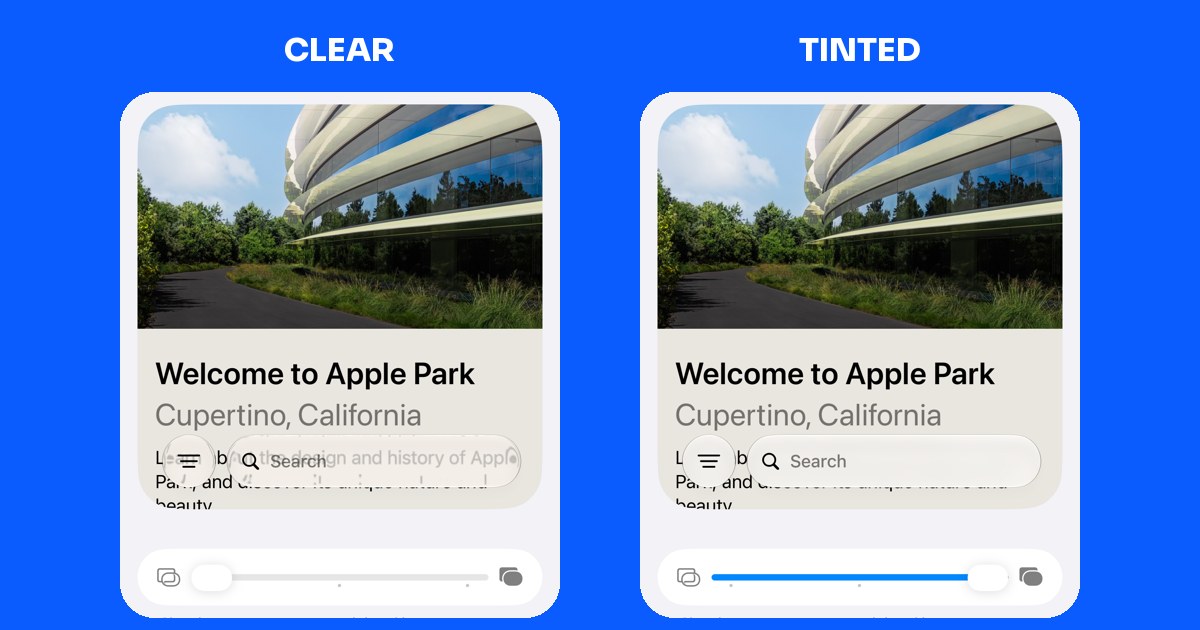
Can't read a button because the page behind it is showing through? Liquid Glass on iPhone looks smart in Apple's demos, but on a busy wallpaper or web page it can make text harder to read. The good news is that you can turn it down. On iOS 27, go to Settings > Appearance > Liquid Glass and drag the slider to the right. On iOS 26.1 or later, go to Settings > Display & Brightness > Liquid Glass and choose Tinted.
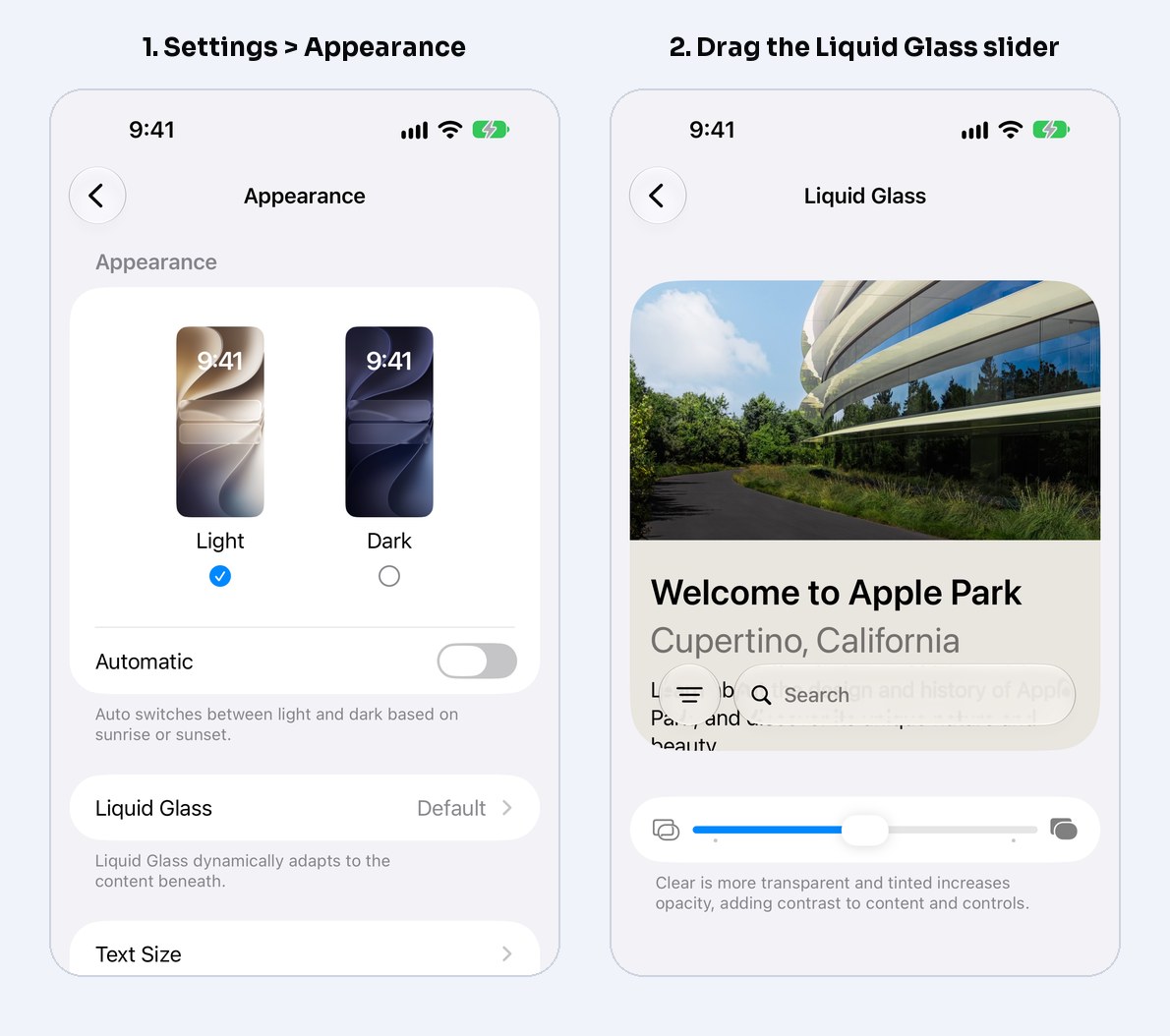
When we looked for help online, other guides disagreed about where the iOS 27 control lives, what its ends are called and whether it snaps to fixed points. So we tested it ourselves. Everything marked iOS 27 below was checked in Apple's iOS 27.2 Simulator on a virtual iPhone 18 Pro. It wasn't a physical phone, so your screen may differ slightly. We had no iOS 26 device, so those steps come from Engadget and BGR.
How to Turn Down Liquid Glass on iPhone in iOS 27
- Open Settings.
- Tap Appearance. This is where the control sat in iOS 27.2, not under Display & Brightness.
- Tap Liquid Glass.
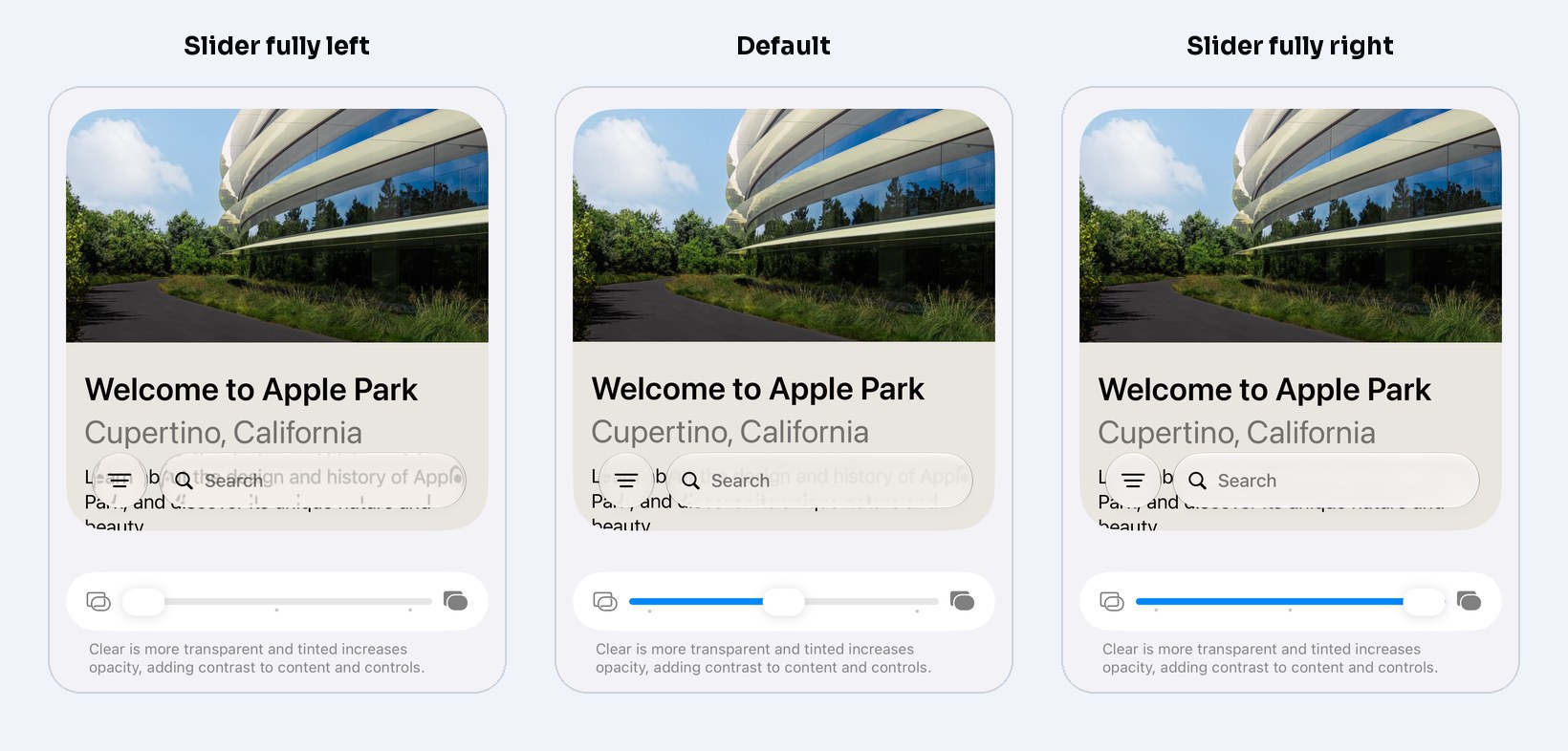
- Drag the slider to the right for a more solid look, or to the left for a clearer one.
- Scroll the sample page above the slider to see how text looks behind the buttons.
As simple as that. There's no Save button.
Note: the slider has no words at its ends, only two small icons. The solid icon on the right is the one you want.
What We Found When We Tested the Slider
- It didn't snap in our test. We stopped it between the dots and it stayed there.
- The label changes. Back on the Appearance page, the row read Default, More Clear or More Tinted. It doesn't show an exact amount.
- Fully right isn't fully solid. Text behind the search bar was hidden in our sample, but the buttons kept their glass edges.
How to Turn Down Liquid Glass in iOS 26
Before starting, check your version in Settings > General > About. The steps depend on it.
iOS 26.1 or later
- Open Settings and tap Display & Brightness.
- Tap Liquid Glass.
- Choose Tinted. It's one or the other here; iOS 26 has no slider.
iOS 26.0
The Clear and Tinted choice arrived with iOS 26.1, so update first, or use Reduce Transparency below.
Want It Even More Solid? Use Reduce Transparency
- Open Settings and tap Accessibility.
- Tap Display & Text Size.
- Turn on Reduce Transparency.
In our iOS 27.2 test this went further than the slider. The search bar and buttons became solid, and a plain strip appeared behind them.
The Catch: Moving the Slider Can Switch It Off
Here's a detail we didn't see in the guides we read. With Reduce Transparency on, the Liquid Glass page adds a line saying that adjusting Liquid Glass may turn this setting off. We tried it. We moved the slider once, and Reduce Transparency went back to off (we checked the system setting and the warning had gone), with no pop-up asking us to confirm.
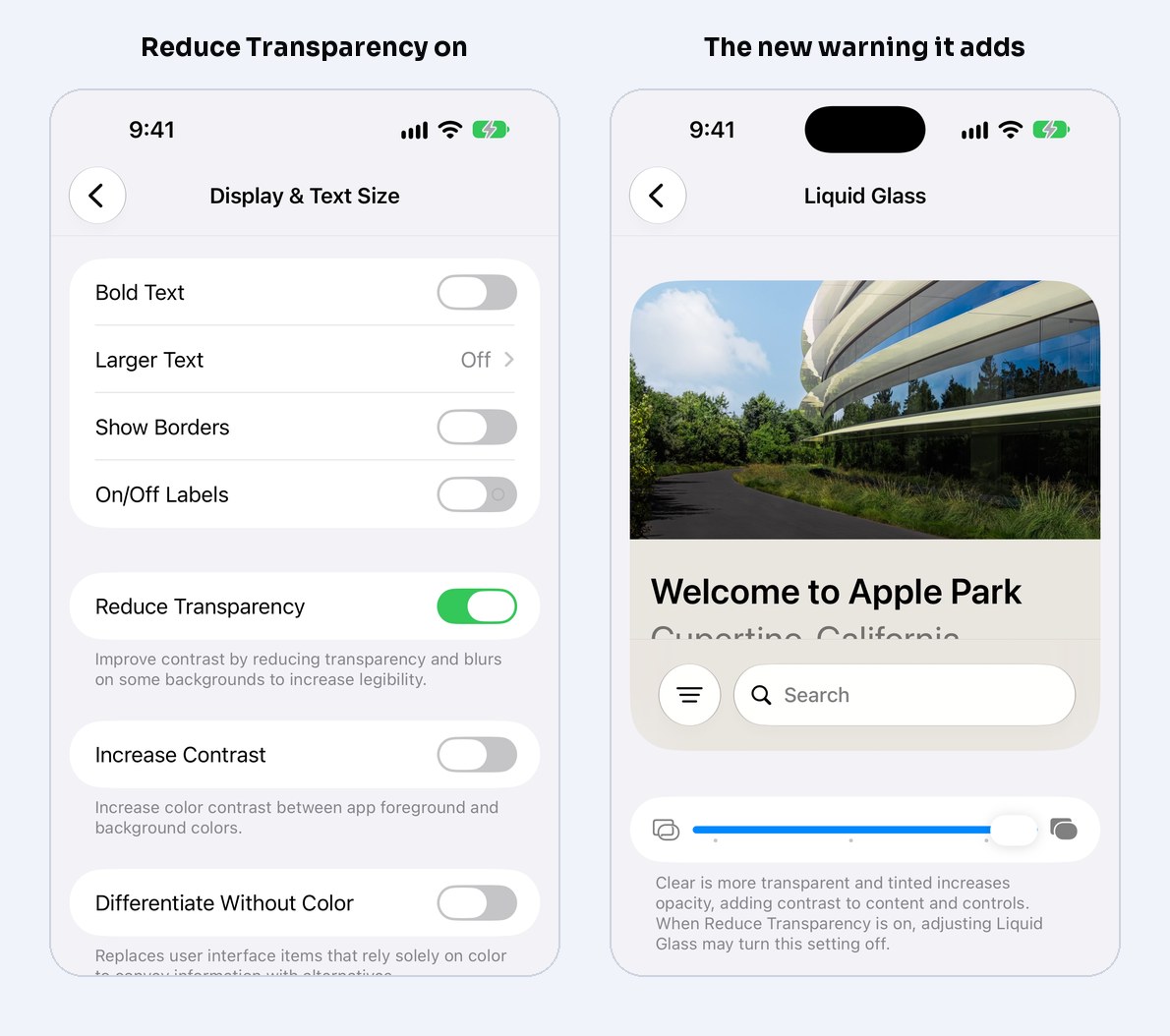
So pick one. If you rely on Reduce Transparency, leave the Liquid Glass slider alone.
Which Setting Should You Use?
| Your problem | Try this |
|---|---|
| You like the look but some text is hard to read | Slider to the right (iOS 27) or Tinted (iOS 26.1 or later) |
| You want solid bars and buttons | Reduce Transparency |
| You want text and controls to stand out more | Increase Contrast, in the same Accessibility menu |
| Buttons are hard to spot | Show Borders, in the same menu (seen in iOS 27.2) |
Setting Missing or Greyed Out?
- You can't find it on iOS 27: look under Appearance first, then Display & Brightness if you are on an earlier iOS 27 version.
- You can't change it on iOS 26: turn off Reduce Transparency and Increase Contrast first. iOS 26.1 asks you to do that before it lets you choose.
- It isn't there at all: your iPhone may be on iOS 26.0 or older.
- It went clear again on iOS 27: check whether Reduce Transparency was switched off, as described above.
Our Opinion
Start with the slider about three quarters of the way to the right. It keeps the new design but makes menus easier to read, and you can undo it in seconds. If you have trouble with low contrast, go straight to Reduce Transparency and then leave the slider alone. I'd like Apple to label the ends of that slider and ask before it turns off an accessibility setting. Nobody should lose a setting they depend on because they moved a slider out of curiosity.
Did you turn Liquid Glass down or leave it as it is? Tell us in the comment section below, and stay tuned to Phone Opinions for the next iOS guide.
Source: our own test in Apple's iOS 27.2 Simulator, Engadget, BGR
FAQ
Can I turn off Liquid Glass completely on iPhone?
We found no full off switch in iOS 27.2. Reduce Transparency, in Accessibility, made bars and buttons the most solid in our test.
Where is the Liquid Glass slider in iOS 27?
In iOS 27.2 it's in Settings, under Appearance, then Liquid Glass.
Why did Reduce Transparency turn itself off?
In iOS 27.2, moving the Liquid Glass slider can turn it off. Switch it back on in Settings, Accessibility, Display & Text Size.