How to Use Gemini on CarPlay: Setup, 7 Smart Uses and Fixes
A step-by-step guide to setting up Gemini on Apple CarPlay, the best things to ask it on your commute, and how to fix a missing Gemini icon.
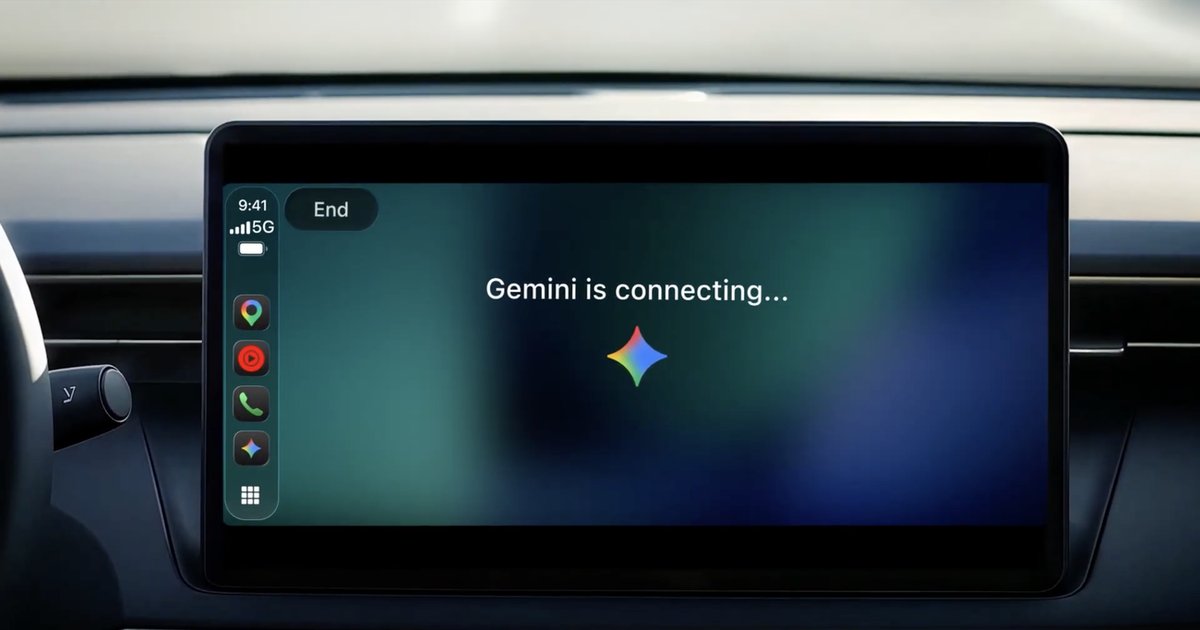
Google began rolling out Gemini on Apple CarPlay worldwide on 11 November 2026, and it's free for every iPhone user of the Gemini app. If you want to use Gemini on CarPlay for hands-free help on your commute, this guide covers setup in a few minutes, the best things to ask it, and what to do when the icon doesn't show up.
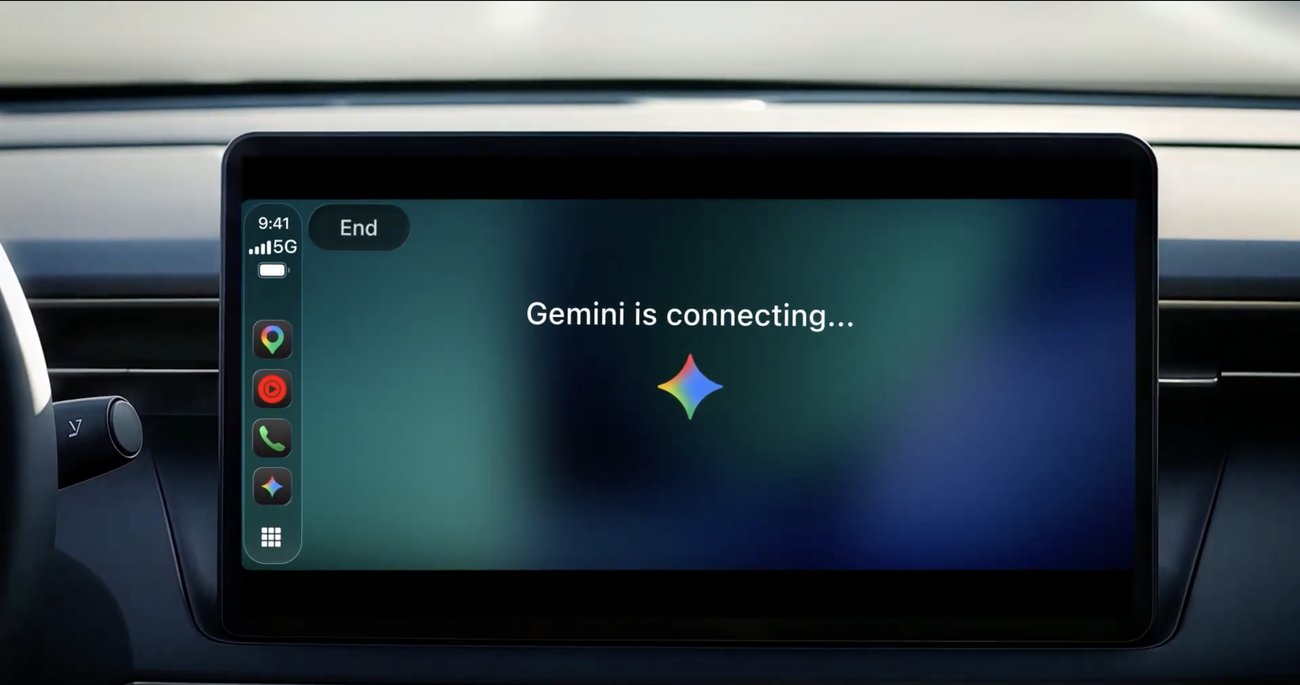
Until this update, iPhone owners could only reach Gemini in the car through Google Maps. Now it has its own icon on the CarPlay home screen and side rail, built around Gemini Live, Google's back-and-forth voice chat.
What You Need Before You Start
- An iPhone that works with CarPlay, and a car or head unit with CarPlay (wired or wireless).
- The latest version of the Gemini app from the App Store, signed in with your Google account.
- Microphone access for the Gemini app.
- For the spoken Daily Brief: you must be 18 or older, and it isn't offered in the European Economic Area or Nigeria.
How to Use Gemini on CarPlay: Setup Steps
There's no separate CarPlay app to download. Everything happens through the Gemini app on your iPhone.
- Update the Gemini app. Open the App Store, tap your profile picture and update Gemini if an update is listed.
- Allow the microphone. Open iPhone Settings, scroll to Gemini and make sure Microphone is switched on.
- Try Gemini Live once on your phone. Open the Gemini app and start a Live conversation. Google says you need to do this at least once before the CarPlay icon appears.
- Switch on the Daily Brief (optional). If you want a spoken summary of your day in the car, turn on the Daily Brief in the Gemini app first.
- Connect to CarPlay. Plug in or connect wirelessly, and look for the Gemini icon on the CarPlay home screen or side rail.
Because the rollout started on 11 November 2026, it can take a few days to reach every account. If the icon is missing, see the fixes below.
Put Gemini Where You Can Reach It
A quick tweak makes Gemini easier to tap while driving. On your iPhone, go to Settings, then General, then CarPlay, choose your car and tap Customize. Drag Gemini onto the first page. That way you never have to swipe through screens on the road.
7 Smart Things to Ask Gemini in Your Car
- "What's my next meeting?" Gemini checks your Google Calendar and helps you prepare.
- "Give me my Daily Brief." A spoken rundown of your day, where available.
- "Summarise my unread emails." Handy for clearing Gmail before you reach the office.
- "Sum up the thread from [name]." Long Gmail threads, condensed into a few sentences.
- "Reply saying I'll be ten minutes late." Dictate a short email reply by voice.
- "Find a good lunch spot near my route." Restaurant and landmark suggestions along the way.
- "Help me rehearse my presentation." Talk it through out loud, and stop or change topic any time.
You can interrupt Gemini mid-answer, pause, or switch topics. The chat syncs back to the Gemini app on your iPhone, so you can pick it up later once you've parked.
What Gemini on CarPlay Can't Do
Gemini here is a talker, not a car controller. According to Android Authority, it can't skip songs, change the air conditioning or operate other CarPlay apps. For those, keep using Siri, or the buttons on your steering wheel.
Gemini Not Showing on CarPlay? Try These Fixes
- Check for a Gemini update in the App Store, then disconnect and reconnect CarPlay.
- Use Gemini Live once on the phone while you're parked, if you haven't already.
- Confirm the microphone is on under Settings, Gemini.
- Look in CarPlay's Customize screen (Settings, General, CarPlay, your car). Gemini may be on a later page or hidden.
- Restart your iPhone and reconnect to the car.
- Give it a few days. The rollout is gradual, so your account may simply not have it yet.
Our Opinion
Overall, Gemini on CarPlay is worth five minutes of setup if your work runs on Gmail and Google Calendar. Hearing your next meeting or a long email thread summarised on the drive in is genuinely useful, and far safer than glancing at your phone. Just keep expectations in check. It won't play your music or adjust the climate, so Siri still has a job. Set it up once, put the icon on the first page, and let it handle the boring email admin while you keep your eyes on the road.
Have you tried Gemini in your car yet? Tell us in the comment section below, and stay tuned to Phone Opinions for more iPhone and Android guides.
Source: Google, Android Authority
FAQ
How do I use Gemini on CarPlay?
Update the Gemini app, allow microphone access, use Gemini Live once on your iPhone, then connect to CarPlay. The Gemini icon appears on the CarPlay screen.
Is Gemini on CarPlay free?
Yes. Google is rolling it out at no extra cost to all iPhone users of the Gemini app, starting from 11 November 2026.
Why is Gemini not showing on my CarPlay?
Your Gemini app may need updating, you may need to use Gemini Live once on the phone, or the gradual rollout may not have reached your account yet.